
 Help centre
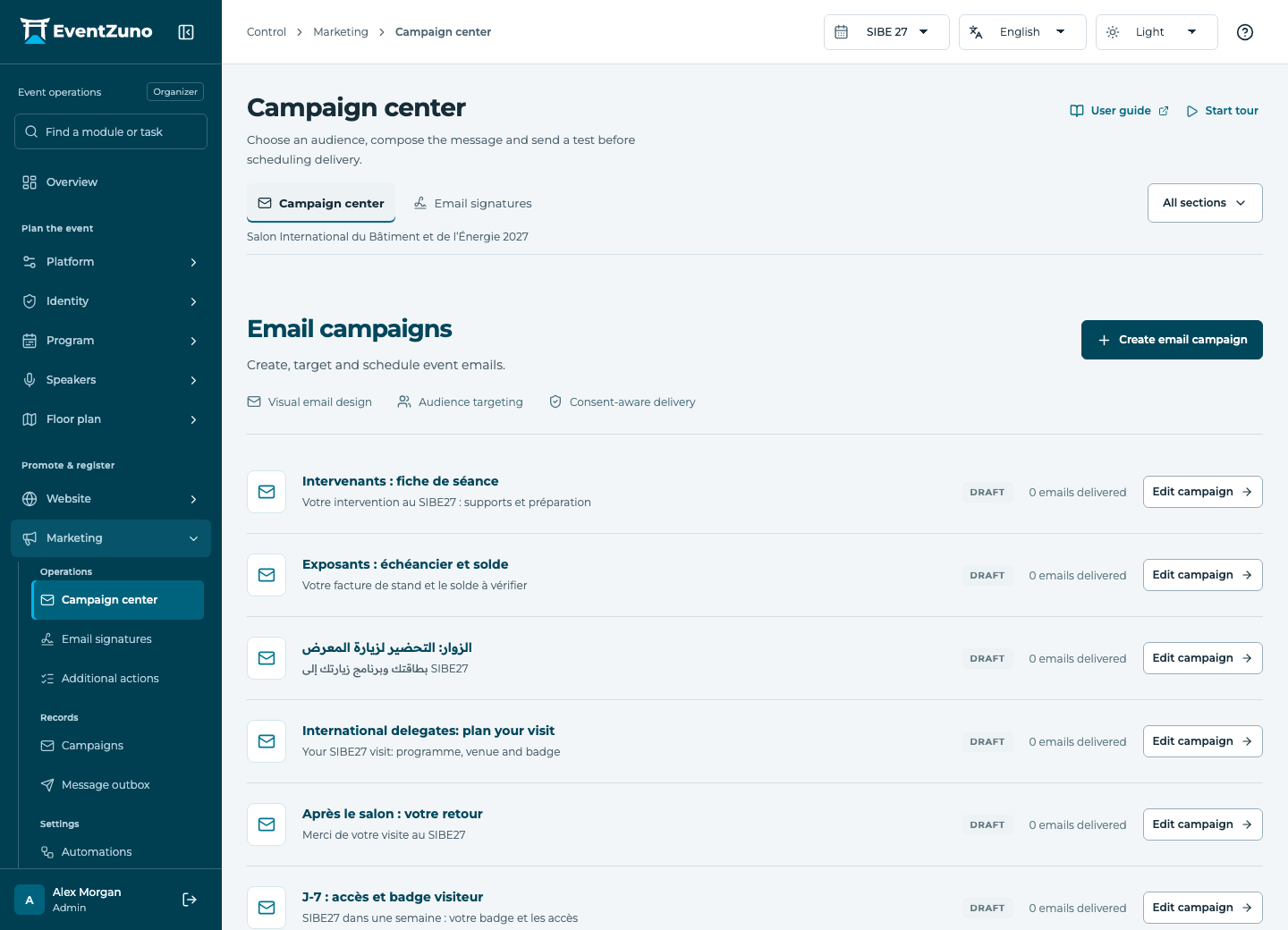
Campaign center
Prepare targeted event messages, test their appearance and monitor actual delivery outcomes.
Steps
- Create a campaign and choose a supported channel and message language.
- Build the email with draggable content blocks, event images and variables.
- Select the audience or segment and check consent and recipient counts.
- Preview desktop and mobile, send a test, then schedule or queue the campaign.
- Review delivery outcomes before treating a message as sent.
Fields and states
Campaigns
Scope: Selected event.
States: draft, scheduled, sending, sent, cancelled.
| Field | Format | Required |
|---|---|---|
| Subject | Text | Yes |
| Body | Long text | No |
| Editor Project | Structured settings | No |
| Html | Long text | No |
| Preheader | Text | No |
| Audience | Structured settings | No |
| Suppression | Structured settings | No |
| Template Id | Text | No |
| Reply To | Email address | No |
| Channel Choices: email, sms, push, in-app | Choice | No |
| Segment Linked to: Segments | Linked record | No |
| Scheduled At | Date and time | No |
| Sender | Text | No |
| Sent Count | Number | No |
| Open Count | Number | No |
| Click Count | Number | No |
Contacts
Scope: All events in this deployment.
States: draft, active, archived.
| Field | Format | Required |
|---|---|---|
| Email address | Yes | |
| First Name | Text | Yes |
| Last Name | Text | No |
| Job Title | Text | No |
| Phone | Text | No |
| Interests | Structured settings | No |
| Tags | Structured settings | No |
| Consent | On or off | No |
| Networking Opt In | On or off | No |
| Bio | Long text | No |
| External Id | Text | No |
If something is missing
Check the selected event, your role and the enabled modules. If an action fails, keep the entered details and review the error before retrying. Ask an administrator for access rather than sharing another account.